Shows — Multi-Step Display
Create automatic multi-step sequences that combine flags, text, colors, and images in timed shows.


Create automatic multi-step sequences that combine flags, text, colors, and images in timed shows.
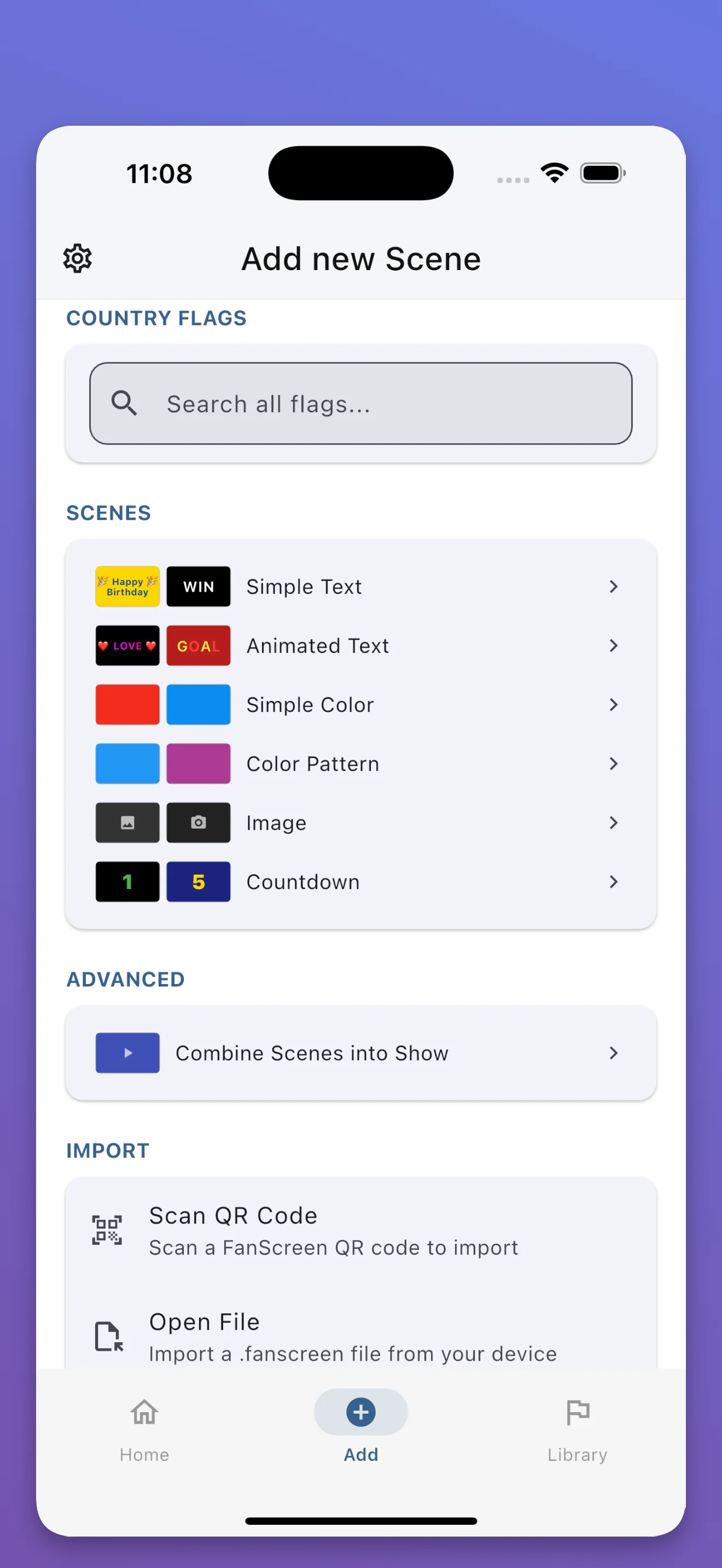
Shows are FanScreen's most powerful feature: multi-step display sequences that play automatically. Each step can be any scene type — flag, text animation, solid color, color pattern, or custom image — with its own duration. Steps transition automatically, creating a seamless display show.
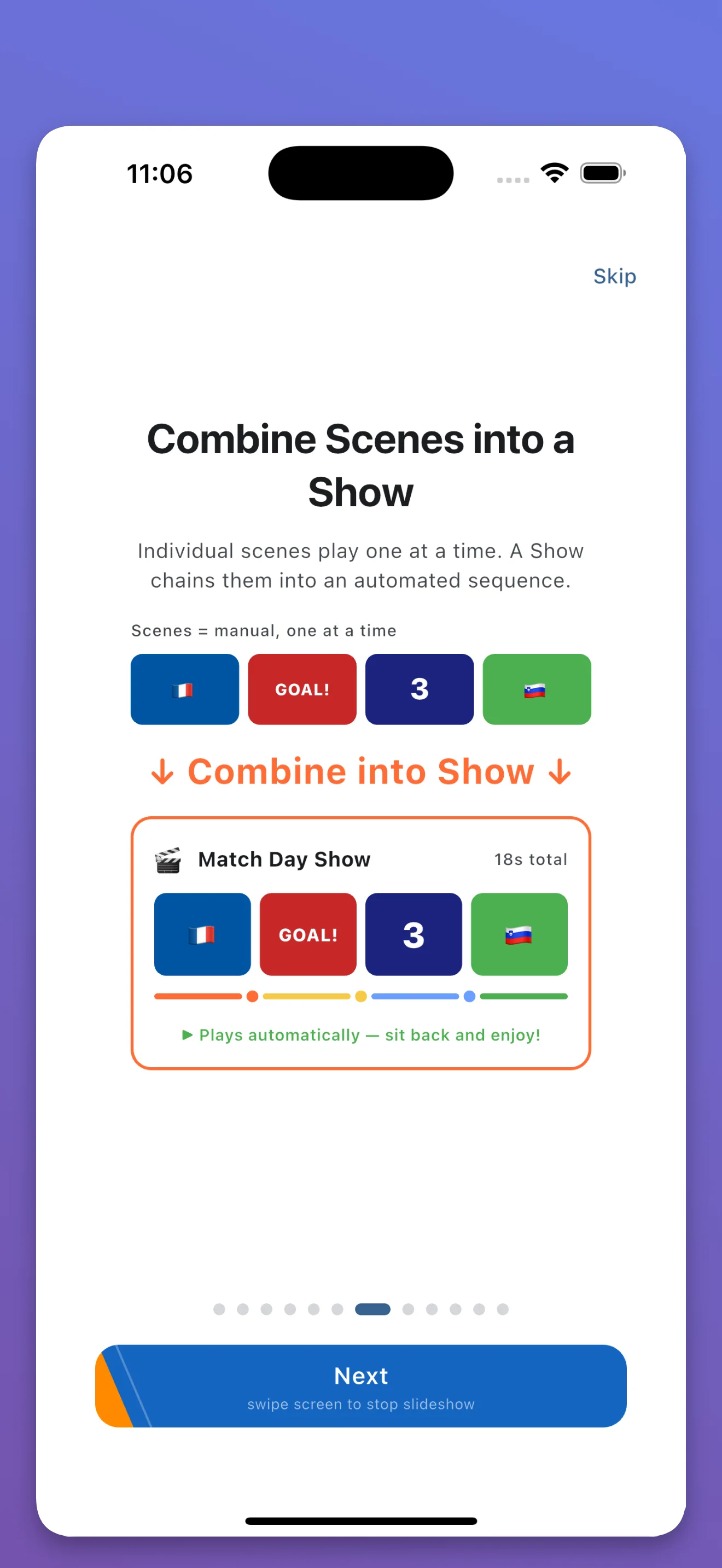
5 seconds — Your national flag fills the screen
3 seconds — Scrolling LED text with team name
2 seconds — Solid color display in team colors
3 seconds — Animated color wave effect
250+ country flags. Choose any flag as a show step.
Static text with custom colors. Great for team names and messages.
16 LED animation styles — scrolling, neon, fire, wave, and more.
Any color from the full-spectrum picker fills the screen.
Multi-color animated patterns and gradients.
Your own photos and images as show steps.
Multi-step sequences, QR sharing, and group sync — all free
Shows are multi-step display sequences. Each step can be a different scene type — a flag, text animation, solid color, color pattern, or custom image — with its own duration. Steps play automatically in sequence.
A Show can have multiple steps with no practical limit. Each step specifies a scene from your library and a duration in seconds.
Yes. Generate a QR code for any Show and share it. Other people scan the QR code, and the entire show transfers to their phone. They can play it in sync using UTC timing.